Slovary: Guide
Welcome to the detailed guide for our dictionary. We created this resource to make searching for terms as simple and effective as possible, combining many dictionaries of different focus in one interface.
This guide will introduce you to search modes and settings, explain how the system's search is organized, and show you the special features available.
Search Modes
In the search bar, you will find the +AI button. It allows you to toggle between two approaches. When the button is lit, "Smart" mode is on; when it's off, "Classical" mode is used.
1. Classical Search Classical
A strict search "by characters". This mode is active when the +AI button is off.
- Precision: Looks only for direct matches in dictionary titles.
- Predictability: You get exactly what is written in the dictionary.
Best for finding a specific term when you know exactly how it is spelled.
2. Smart Search (AI) +AI
Powered by Artificial Intelligence. It is active when the +AI button is lit. The system tries to understand the meaning of your query.
- Standard search + AI: Includes regular search and enhances it with artificial intelligence capabilities.
- Meaning-based: Finds related concepts (e.g., searching for "loyalty" will lead to "ALLEGIANCE").
- Deep understanding: Finds the result even if words are in a different order, some letters are missing, or there are multiple typos.
- Deep Search: Additionally searches inside the text of all definitions. Finds relevant articles even if not all words in the query match.
Ideal when you don't remember the exact spelling or are exploring a topic in general.
Advanced Features
Our search uses smart technologies to make your study more effective.
Cross-links to terms
Dictionaries of the same language are interconnected: if a term from another dictionary of the same language appears inside a definition, it becomes an interactive link. When hovering or tapping, the term is highlighted with the primary theme color and bold, while words from general dictionaries are highlighted in bold.
- Topic Overview: Hover over the article header (where the dictionary name is), and all important terms inside that definition will light up in bold. This helps you quickly see the key concepts.
- Instant Navigation: Click on any word inside an article (once or twice, depending on your settings) to immediately see its definition.
- Hover Highlighting: When hovering over words inside the definition:
- Scientology terms are highlighted in the primary theme color.
- Common words (from general dictionaries) are simply bolded.
- Words missing from the selected dictionaries or stop words (e.g., conjunctions, prepositions, particles) are not highlighted on hover.
Exact Search with Double Quotes
For exact phrase or term matching, use double quotes. Searching in quotes will find only exact matches, ignoring partial matches and spelling variants.
- Example: Searching
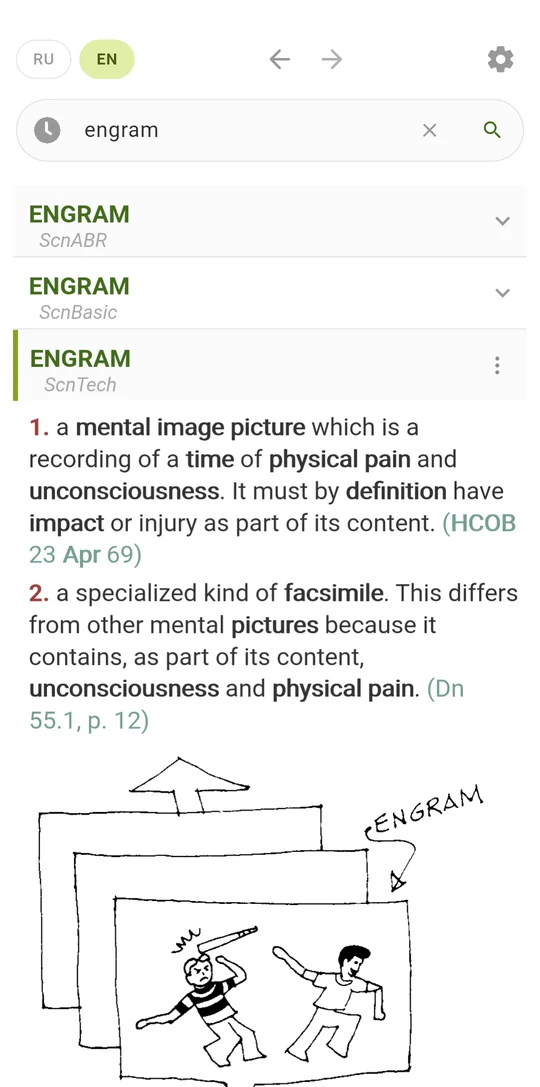
"ENGRAM"will find only the term "ENGRAM", but not "ENGRAM BANK" or "ARC ENGRAM". - When to use: When you want to find one specific term, for example, to share a link to it with a friend or save an exact link to the needed article.
Clarification Chains
When you read an article and click an unfamiliar word inside its definition to look up what it means, the dictionary remembers where you came from. Each step becomes a node in a clarification chain: parent → child → grandchild, exactly the path you followed.
How a chain forms
- Click on a word: when you click a word inside an article and run a search for it, the source article becomes the parent of the next step. Single-click vs double-click is configured under Personalization.
- Next step: the result of that search is saved as a child of the parent, not as a fresh standalone query.
- Side branches: return to an already-visited article and click a different word — a new branch starts from the same node, so you can compare several clarifications side by side.
- Frozen titles: once an article has children in a chain, its title in the history is frozen — the entry won't drift to a different article if you open it later.
Where chains are visible
- Search history dropdown (the clock icon to the left of the search bar) shows the whole tree. The path from the first query to the article you have open right now is highlighted in bold brand color. Branches you aren't exploring stay collapsed — expand them by clicking
▸or using the arrow keys. - Chain side panel on a wide screen (desktop): a slim panel on the left with just the active branch. It appears on its own once a chain has two or more steps, so you always have a bird's-eye view of where you are. A round Chain button in the lower-left corner toggles it manually.
- In-article banners: a short banner confirms that a step has been added to the chain and offers an Undo action to start a fresh chain instead. If you drift off with an unrelated search, a second banner offers to rejoin the chain.
Moving around the chain
- Click any node in the tree or in the side panel to jump to that article. The chain stays intact — you can keep exploring from any point.
- Resize the side panel by dragging its right edge; the dictionary remembers the width you like. On narrow windows the panel is hidden automatically so the main text isn't squeezed.
- Close the panel with the × button and it stays hidden until you reload the page. A brand-new chain will bring it back.
- With the history dropdown open, start typing in the search bar — the tree collapses into a list of matches, and a short path
← ancestor / ancestorappears under each match so the context stays clear.
Chains are stored only in your browser, next to the rest of the search history, and are never sent to the server.
Personalization
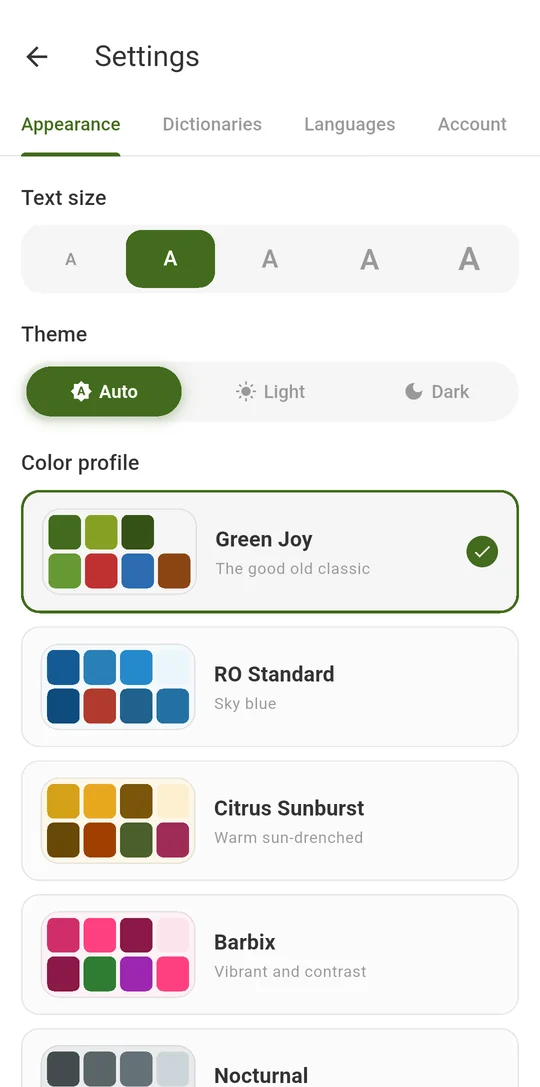
The search bar has two buttons for convenient dictionary usage. Search history (on the left) saves your recent queries — click it to quickly return to previous searches. Settings (on the right) open a personalization panel where you can select dictionaries, change the color theme, configure click mode for words, and adjust other interface options.
Themes and Profiles
We have prepared 12 color profiles: from classic to bright and unusual options. Choose the one that is most comfortable for your eyes or fits your mood.
Each profile is available in two variants: light theme and dark theme. You can switch between them by clicking the "RO" logo in the top left corner or in settings.
Dictionary Selection
Click the settings icon to open the panel where you can disable entire languages or specific dictionaries if you don't use them.
Search History
The system automatically remembers your search queries so you can quickly return to them later. Click the history icon on the left of the search bar to open the list of recent queries.
- Privacy: All history is stored locally only in your browser on the device where you use Slovary.pro. It is not transmitted to the server and is available only to you.
- Last term: The dictionary remembers not only the word and search language, but also exactly which article you opened in the search results. Thus, when opening from history, the article you opened last will be shown.
- Tree view: history is shown as a tree — you can see which article each word click came from. Start typing in the search bar to filter. See Clarification Chains for the full behavior.
- Clearing: you can wipe the entire history at any time.
Click Mode
Every word in a dictionary entry is interactive. You can click any of them to instantly go to its definition. Successive clicks build a clarification chain so you can always trace your path back.
Two modes are available in settings:
- Single click: a search runs after one click on a word.
- Double click (default): a search runs only after two clicks in a row. Useful if you often highlight text for copying or scroll the page with touches — accidental navigation doesn't trigger.
The phone app
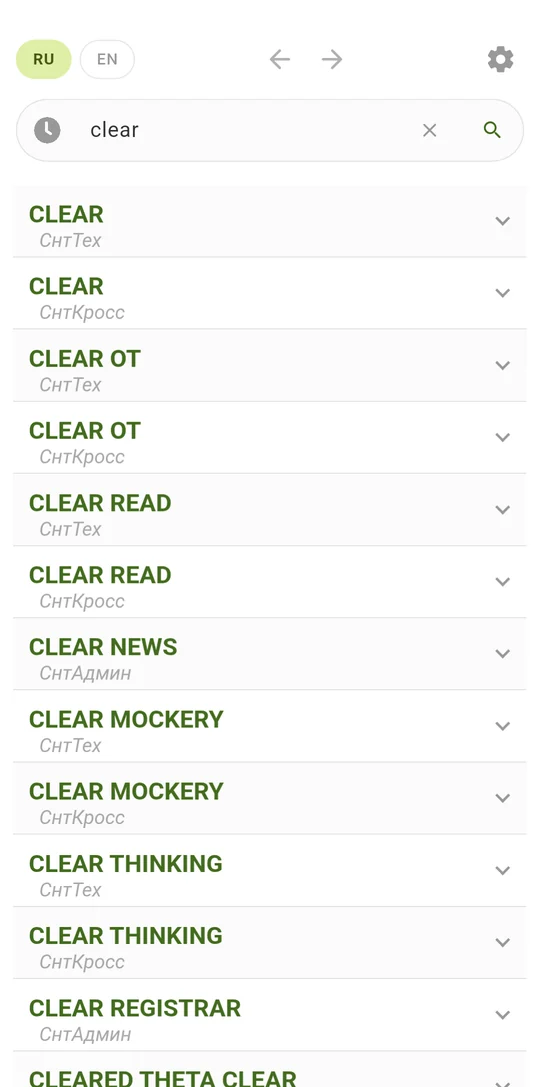
Every dictionary on this site is also in the Android app — together with the database, so search works with no internet at all: on a plane, underground, out of town. Double-tapping a word in an entry opens its definition just like on the site, and clarification chains are kept.
Download the app and see the details →
An iPhone version is in progress.
Contacts
If you have any questions or suggestions regarding the dictionary, please write to us: